
Showing posts with label Canvas Live Content. Show all posts
Showing posts with label Canvas Live Content. Show all posts
Friday, May 29, 2015
Tech Tip Indexes
Although these are mostly just placeholders right now, I'll be filled up these pages with links to the various Tech Tip posts in support of the Canvas Growth Mindset Playground course at Canvas.MythFolklore.net.

Monday, May 25, 2015
Diigo: Growth Mindset stream in Canvas
In a previous post, I wrote about using Diigo to keep track of growth mindset content (I come across a lot of relevant articles in my daily reading!), and in this post I'll explain how to take the Diigo RSS feed and display it in Canvas. This is a perfect example of live content: as you browse online, you just bookmark articles in Diigo, write up some annotation to explain your interest in the article, grab an image if you want... and presto: that appears in Canvas too, automatically.
You can see the Canvas page here: Growth Mindset Playground Diigo. And remember, that's a completely open, public page — just click and go! Here's a screenshot:

Here's what you need to make this work:
1. Use Diigo to create bookmarks. It's easy to create a Diigo account (they have some special services for educators too), and there are some browser plugins that allow you to save bookmarks easily as you are browsing. Think about how you like to search and organize the articles as you choose your tags.
2. Optional: add annotations. I usually bookmark lots of stuff, and when I get time I then go back through the bookmarks and add notes (Diigo lets you edit bookmarks later to add notes). When I annotate an article, I add the tag "annotated." That allows me to easily find the bookmarks that are annotated, and I can also search for "NOT annotated" in order to see which articles don't have annotations (yet).
3. Optional: grab images. In addition to annotations that you add to a bookmark, Diigo lets you grab an image to save along with the URL. I just recently started saving images in Diigo this way (inspired by my use of Pinterest, which is totally image-driven), and I am really liking how the images provide good visual cues to help me remember the contents of the articles.
4. Put the Diigo RSS in Inoreader. You can then follow these instructions for Inoreader RSS in Canvas. Diigo is a really useful RSS service: there is an RSS feed for any Diigo search in my bookmarks, and the RSS link is at the bottom of each Diigo search page. So, for example, when I search for my Diigo bookmarks that are for growth mindset with annotations but not videos and not from my own blog, I get this page, with an RSS link at the bottom:
growthmindset annotated NOT videos NOT gmzone
So, just follow those instructions, using the Diigo RSS feed for step #2 in those instructions.
And have fun: Diigo is a really powerful tool, and you can build your own set of tags and feeds to keep track of important while also sharing it with your students!
You can see the Canvas page here: Growth Mindset Playground Diigo. And remember, that's a completely open, public page — just click and go! Here's a screenshot:

Here's what you need to make this work:
1. Use Diigo to create bookmarks. It's easy to create a Diigo account (they have some special services for educators too), and there are some browser plugins that allow you to save bookmarks easily as you are browsing. Think about how you like to search and organize the articles as you choose your tags.
2. Optional: add annotations. I usually bookmark lots of stuff, and when I get time I then go back through the bookmarks and add notes (Diigo lets you edit bookmarks later to add notes). When I annotate an article, I add the tag "annotated." That allows me to easily find the bookmarks that are annotated, and I can also search for "NOT annotated" in order to see which articles don't have annotations (yet).
3. Optional: grab images. In addition to annotations that you add to a bookmark, Diigo lets you grab an image to save along with the URL. I just recently started saving images in Diigo this way (inspired by my use of Pinterest, which is totally image-driven), and I am really liking how the images provide good visual cues to help me remember the contents of the articles.
4. Put the Diigo RSS in Inoreader. You can then follow these instructions for Inoreader RSS in Canvas. Diigo is a really useful RSS service: there is an RSS feed for any Diigo search in my bookmarks, and the RSS link is at the bottom of each Diigo search page. So, for example, when I search for my Diigo bookmarks that are for growth mindset with annotations but not videos and not from my own blog, I get this page, with an RSS link at the bottom:
growthmindset annotated NOT videos NOT gmzone
So, just follow those instructions, using the Diigo RSS feed for step #2 in those instructions.
And have fun: Diigo is a really powerful tool, and you can build your own set of tags and feeds to keep track of important while also sharing it with your students!
Monday, May 18, 2015
OU's Public Canvas Courses
In another post, I wrote about how exciting it is that we can create Canvas courses that are public, open for all to see. Now that our official OU Canvas space is up and running, you can look at the catalog of public courses... and you'll see two of them there: my Growth Mindset Playground and also Keegan's Intro to Canvas, along with a generic training course provided by Canvas.

If you are logged in as an OU user, you can "join" the course... but, even better, because Keegan and I both made our courses public, that means they are viewable by anyone at all without joining and without logging in. In other words, you can visit the courses, just like you visit a normal website online, bookmarking the pages, sharing the links, etc.
So, thanks to our public Canvas space, you can browse around my Growth Mindset Playground, and you can browse around Keegan's Intro course, learning together with us as we learn!
This public option is a HUGE difference from the D2L system that we used before. I hope lots of people will choose to take advantage of this option to share and learn together, sharing public Canvas content. Look and link! :-)

If you are logged in as an OU user, you can "join" the course... but, even better, because Keegan and I both made our courses public, that means they are viewable by anyone at all without joining and without logging in. In other words, you can visit the courses, just like you visit a normal website online, bookmarking the pages, sharing the links, etc.
So, thanks to our public Canvas space, you can browse around my Growth Mindset Playground, and you can browse around Keegan's Intro course, learning together with us as we learn!
This public option is a HUGE difference from the D2L system that we used before. I hope lots of people will choose to take advantage of this option to share and learn together, sharing public Canvas content. Look and link! :-)
Sunday, May 17, 2015
Canvas Live Content: Curation
We've all made lists of links, right? Sometimes that is the right approach, but not always, especially when you have lots of new content (i.e. actual news items, new content created by your students, etc.). For a continuously expanding list of links, you need something more dynamic. Using a live content channel in Canvas allows you to quickly get new content recommendations to your students without having to log on to Canvas and tinker with a static link list.
Below is a suggestion of how you can use Twitter as a curation tool to share content with your students via Canvas, and then at the bottom there are suggestions for other tools you could use to accomplish a similar goal.


Below is a suggestion of how you can use Twitter as a curation tool to share content with your students via Canvas, and then at the bottom there are suggestions for other tools you could use to accomplish a similar goal.
Best of OU Create: Twitter stream
The University of Oklahoma has a Domain of One's Own project which is called OU Create. You can read all about it here: Create.OU.edu.
As a result of this project, there are hundreds of student and faculty blogs, websites, and other online projects which are active in any given semester. The program is administered by our Center for Teaching Excellence, and once of the CTE staff members, Anoop Bal, keeps an eye on the content stream, sharing Best of OU Create items via a dedicated Twitter account: Best of OU Create.
As a result of this project, there are hundreds of student and faculty blogs, websites, and other online projects which are active in any given semester. The program is administered by our Center for Teaching Excellence, and once of the CTE staff members, Anoop Bal, keeps an eye on the content stream, sharing Best of OU Create items via a dedicated Twitter account: Best of OU Create.

As a general rule, Anoop does not share images or other media as part of his tweets, so this is an example of a Twitter content stream that would actually work very well using the standard Canvas Twitter app!
To use the standard Canvas Twitter app, just go to Canvas, install the official Twitter app, and you will then see a Twitter icon in your HTML editor.
To use the standard Canvas Twitter app, just go to Canvas, install the official Twitter app, and you will then see a Twitter icon in your HTML editor.

When you click on the Twitter icon, you will be prompted to add a user or a hashtag. You could use a hashtag to curate "best of" a content area together with your students OR you can curate via a dedicated account as Anoop has done. The app accommodates either option, and you can decide what is the best approach for your purposes.

Here's the live Twitter content stream that results as a sample page at Canvas.MythFolklore.net. See it in action here: Best of OU Create in Canvas.

Of course, you can also use the other Twitter embed method if you are sharing a stream that does include images and other media! :-)
More Curation Tools
Twitter is not the only tool you can use for live curation like this. Diigo is an obvious choice (and Diigo can also include thumbnail images), and so is Inoreader, where you would use a tag to flag items for "best of" listing. You could also use Pinterest. I'll post some more later this summer about using tools like Diigo, Inoreader, and Pinterest for live Canvas content.
Friday, May 15, 2015
Canvas Live Content: Content Across Classes
When you use what I am calling "live content" in Canvas, that means you edit the content with a tool outside of Canvas so that the updated content appears automatically in Canvas, and it also appears anywhere else that you have chosen to display that content. Publish once... display everywhere.
So, for example, when I update a YouTube playlist, I do that at YouTube, which means the playlist page at YouTube is updated (here's my Growth Mindset playlist), while it's also updated automatically in the sidebar of this blog and in the sidebar of my Growth Mindset Memes blog, and also at my Growth Mindset Playground in Canvas: Canvas.MythFolklore.net. Plus it updates automatically here in this post where I have embedded the playlist, along with anywhere else that ANYBODY has embedded this playlist. The more, the merrier: I will be really happy if other people find the playlist useful and embed it in their own blogs and websites.
And here's the thing: even if if you are collecting content that is specific to your classes only, it can still be advantageous to use this "live content" option if you have content you use in MULTIPLE CLASSES. That's the case for me with my class announcements, for example, and my class Twitter stream I have one blog for class announcements that applies to both of my classes, and I have one Twitter stream with content of interest to both of my classes. Taking the "live content" approach in Canvas allows me to update that blog once and have it update automatically for both classes, and likewise with the Twitter stream; I can tweet something, and it shows up in the Twitter stream inside both classes.
So, with the Growth Mindset Playground in Canvas, I am using live content because I hope the content I am putting there can also be of use to other teachers... but when it comes to my own classes, I need to use the "live content" approach in order to work efficiently across multiple classes: I want to update the content just one time and have it appear in both of my classes automatically!
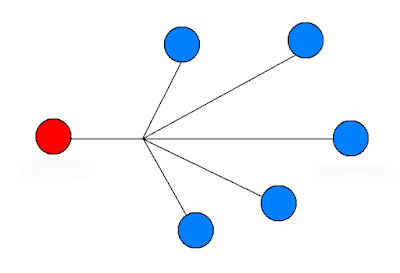
So, with the Growth Mindset Playground in Canvas, I am using live content because I hope the content I am putting there can also be of use to other teachers... but when it comes to my own classes, I need to use the "live content" approach in order to work efficiently across multiple classes: I want to update the content just one time and have it appear in both of my classes automatically!
Publish once, display everywhere.

Sunday, May 10, 2015
Tech Tip: Advantages of a YouTube Playlist
One of my Canvas live content pages displays a "Growth Mindset" playlist from YouTube; you can see the page here: Growth Mindset Playground - YouTube. I created the playlist at YouTube, and then I embedded the playlist in Canvas.
As I add new videos to the playlist (and I'll be adding a lot of videos!), they appear automatically at Canvas; I don't need to do anything after embedding the YouTube playlist in the Canvas page:


As I add new videos to the playlist (and I'll be adding a lot of videos!), they appear automatically at Canvas; I don't need to do anything after embedding the YouTube playlist in the Canvas page:

Playing a Video in a Playlist. Just click play to watch the video, and when the first video in a playlist ends, the next video in the list begins. That is the greatest power of the playlist: you can set up a series of videos for your students to watch.
Playlist Index. When you go to my Canvas YouTube page, you will see the video that is first in the playlist, but you can also access the playlist index by clicking in the upper left-hand corner. The index shows the other videos in the list:
Playlist Index. When you go to my Canvas YouTube page, you will see the video that is first in the playlist, but you can also access the playlist index by clicking in the upper left-hand corner. The index shows the other videos in the list:

Playlist Video at YouTube. If you click on the "Watch on YouTube" link in the bottom of the video, you will see the video displayed at YouTube together with information about the playlist to the right. Click on this link for an example of how YouTube displays a video as part of a playlist: How to Build Your Creative Confidence.

Playlist Page at YouTube. Finally, if you click on the title of the playlist in the playlist navigation panel, you will go to the actual YouTube page for the playlist, like this: Growth Mindset Playlist. This is the page where the creator of the playlist (me, in this case!) can rearrange videos, add annotations, etc.

Advantages of Playlists. As you can see, a playlist of videos, as opposed to a series of separate videos, can offer a lot of advantages. In other TechTips: YouTube posts, I'll explain in detail how to create and maintain a YouTube playlist and also how to embed the playlist in Canvas. Meanwhile, here is a quick list of reasons why I like working with YouTube playlists:


- the playlist is dynamic, so you can add, remove, and rearrange content, but the link to the playlist stays the same
- the playlist can be embedded in lots of places, like Canvas, in a webpage, in the sidebar of a blog (like in this blog), etc.
- you can provide your own video descriptions by adding notes to the playlist page
- you can encourage students to explore the topic in depth by collecting related videos in a playlist
- playlists are part of your YouTube channel, so students can explore your other playlists and saved videos
- students can learn video curation skills by observing your use of playlists... and then everybody can make playlists to share!
Saturday, May 9, 2015
Support for Canvas.MythFolklore.net
One of the (many) purposes for this new blog is to support the "live content" Canvas course I built as a public demonstration space for my school's transition to Canvas: Canvas.MythFolklore.net. The title of the course is Growth Mindset Playground, and I am using the topic of growth mindset as a way to illustrate the different ways that live content can be added to a Canvas course. You can read more about live content here: Why Live Content?
What I will be doing in this blog is documenting how I use the different tools featured there in the Canvas course — Twitter, YouTube, Diigo, etc. — to curate growth mindset materials for my own learning and also to share with my students. So, you can look forward to a series of posts here that will match up to the different "live content pages" which I have up and running at the Canvas course. It's completely open, so feel free to browse around there. I hope to have it in really excellent shape by the time August rolls around and faculty start really thinking about what this transition to Canvas can offer!

What I will be doing in this blog is documenting how I use the different tools featured there in the Canvas course — Twitter, YouTube, Diigo, etc. — to curate growth mindset materials for my own learning and also to share with my students. So, you can look forward to a series of posts here that will match up to the different "live content pages" which I have up and running at the Canvas course. It's completely open, so feel free to browse around there. I hope to have it in really excellent shape by the time August rolls around and faculty start really thinking about what this transition to Canvas can offer!

Friday, May 1, 2015
Canvas: Why Live Content?
This post originally appeared on May 1 at my Digital Teaching blog.
When the Canvas decision was announced at my school last week, a faculty member and long-time friend wrote and asked: "What is the one thing that Canvas does do that D2L doesn't that the normal teacher might want to use? I don't suspect that Canvas will entice me to change my teaching style much or how I use technology."
This person is expressing honestly what a lot of faculty feel about the LMS: teaching in the classroom is normal, but using online tools for teaching is not normal, and if you are going to suggest that people change their teaching style, you need to give them a good reason!
And what is my answer to his question? I actually have two answers:
Answer 1: Canvas can be public. The number one thing that Canvas does differently from D2L is that it lets us make our courses public so that we can share and learn from one another. Within a day of our Canvas sandbox being open for use, I had a Growth Mindset Playground course up and running — just click and go: no log-in required! Real webpages on the real Internet. I will be using that as a demonstration space to entice people to think about using live content technology in their courses... and also to share growth mindset resources; weaving growth mindset explicitly into my course content this year has been a huge boost for me and for my students.

Which leads to:
Answer 2. Live web content. In my opinion, all faculty can and should be creating and/or curating web content for their students, extending what we do in the classroom so that students have even more opportunities to keep learning online. If you are pressed for time (and everyone is), then curation is the way to go! You don't have to create content; you just have to find existing content and share it with your students. And that's where live content comes in: with live pages in Canvas, the content shows up there automatically — you don't even have to log on or do anything at all after you set up your live pages.
And there are lots of kinds of live content you can display in Canvas. See a video you want to share with your students? Add it to the YouTube playlist for class, and students can watch the video in Canvas. Find a website you want to share? Bookmark it in Diigo and tag it for your class; the link will show up in Canvas. Photographs, infographics, memes? You can save images to a Flickr album, and those images will appear in your Canvas slideshow. And so on for all the different types of live content that you can embed in Canvas pages.
Even better: you can configure these pages so that the students can also be contributing content, creating and/or curating together with you. For example, choose a class hashtag for the students to use, and their tweets will show up on your Canvas page. Do your students blog? You can use Inoreader to have their blog posts (all of their posts, or only posts with a specific label) show up inside your Canvas course.
Canvas without Canvas. After you set up your live pages in Canvas, you can spend your time out on the real Internet, searching and browsing! As you save the content (bookmark in Diigo, retweet in Twitter, etc.), it appears in Canvas automatically. No logging in and editing, no copying-and-pasting; instead, you are out there on the Internet, finding things and sharing what you find with your students. And your Canvas course does not have to be public for this to work; live content pages will work just fine whether you choose to make your course public or not.
And that's all, folks. There are other people at my school who will be sharing materials and conducting workshops about other Canvas features, but that's not my thing; I prefer to use the real Internet for my classes, along with real tools, not an LMS. But I am very interested in the ways that Canvas can connect to the power of the real Internet, and I'll be adding posts at this blog, and also at my Anatomy of an Online Course blog, to say more about creating and curating live content, and specifically about the tools I like best: Inoreader, Blogger, Twitter, Diigo, YouTube, and Flickr. I know I will learn a lot by documenting my use of these tools, and perhaps my posts can be useful to you too!
When the Canvas decision was announced at my school last week, a faculty member and long-time friend wrote and asked: "What is the one thing that Canvas does do that D2L doesn't that the normal teacher might want to use? I don't suspect that Canvas will entice me to change my teaching style much or how I use technology."
This person is expressing honestly what a lot of faculty feel about the LMS: teaching in the classroom is normal, but using online tools for teaching is not normal, and if you are going to suggest that people change their teaching style, you need to give them a good reason!
And what is my answer to his question? I actually have two answers:
Answer 1: Canvas can be public. The number one thing that Canvas does differently from D2L is that it lets us make our courses public so that we can share and learn from one another. Within a day of our Canvas sandbox being open for use, I had a Growth Mindset Playground course up and running — just click and go: no log-in required! Real webpages on the real Internet. I will be using that as a demonstration space to entice people to think about using live content technology in their courses... and also to share growth mindset resources; weaving growth mindset explicitly into my course content this year has been a huge boost for me and for my students.

Answer 2. Live web content. In my opinion, all faculty can and should be creating and/or curating web content for their students, extending what we do in the classroom so that students have even more opportunities to keep learning online. If you are pressed for time (and everyone is), then curation is the way to go! You don't have to create content; you just have to find existing content and share it with your students. And that's where live content comes in: with live pages in Canvas, the content shows up there automatically — you don't even have to log on or do anything at all after you set up your live pages.
And there are lots of kinds of live content you can display in Canvas. See a video you want to share with your students? Add it to the YouTube playlist for class, and students can watch the video in Canvas. Find a website you want to share? Bookmark it in Diigo and tag it for your class; the link will show up in Canvas. Photographs, infographics, memes? You can save images to a Flickr album, and those images will appear in your Canvas slideshow. And so on for all the different types of live content that you can embed in Canvas pages.
Even better: you can configure these pages so that the students can also be contributing content, creating and/or curating together with you. For example, choose a class hashtag for the students to use, and their tweets will show up on your Canvas page. Do your students blog? You can use Inoreader to have their blog posts (all of their posts, or only posts with a specific label) show up inside your Canvas course.
Canvas without Canvas. After you set up your live pages in Canvas, you can spend your time out on the real Internet, searching and browsing! As you save the content (bookmark in Diigo, retweet in Twitter, etc.), it appears in Canvas automatically. No logging in and editing, no copying-and-pasting; instead, you are out there on the Internet, finding things and sharing what you find with your students. And your Canvas course does not have to be public for this to work; live content pages will work just fine whether you choose to make your course public or not.
And that's all, folks. There are other people at my school who will be sharing materials and conducting workshops about other Canvas features, but that's not my thing; I prefer to use the real Internet for my classes, along with real tools, not an LMS. But I am very interested in the ways that Canvas can connect to the power of the real Internet, and I'll be adding posts at this blog, and also at my Anatomy of an Online Course blog, to say more about creating and curating live content, and specifically about the tools I like best: Inoreader, Blogger, Twitter, Diigo, YouTube, and Flickr. I know I will learn a lot by documenting my use of these tools, and perhaps my posts can be useful to you too!
Questions? Requests? Let me know — you can comment here at the blog or get in touch with me by email (laura-gibbs@ou.edu) or Twitter (@OnlineCrsLady). I hope this transition will be a chance for those of us interested in online teaching to pool our knowledge, helping each other out and sharing ideas!


Subscribe to:
Posts (Atom)