
Showing posts with label Canvas. Show all posts
Showing posts with label Canvas. Show all posts
Friday, May 29, 2015
Tech Tip Indexes
Although these are mostly just placeholders right now, I'll be filled up these pages with links to the various Tech Tip posts in support of the Canvas Growth Mindset Playground course at Canvas.MythFolklore.net.

Monday, May 25, 2015
Diigo: Growth Mindset stream in Canvas
In a previous post, I wrote about using Diigo to keep track of growth mindset content (I come across a lot of relevant articles in my daily reading!), and in this post I'll explain how to take the Diigo RSS feed and display it in Canvas. This is a perfect example of live content: as you browse online, you just bookmark articles in Diigo, write up some annotation to explain your interest in the article, grab an image if you want... and presto: that appears in Canvas too, automatically.
You can see the Canvas page here: Growth Mindset Playground Diigo. And remember, that's a completely open, public page — just click and go! Here's a screenshot:

Here's what you need to make this work:
1. Use Diigo to create bookmarks. It's easy to create a Diigo account (they have some special services for educators too), and there are some browser plugins that allow you to save bookmarks easily as you are browsing. Think about how you like to search and organize the articles as you choose your tags.
2. Optional: add annotations. I usually bookmark lots of stuff, and when I get time I then go back through the bookmarks and add notes (Diigo lets you edit bookmarks later to add notes). When I annotate an article, I add the tag "annotated." That allows me to easily find the bookmarks that are annotated, and I can also search for "NOT annotated" in order to see which articles don't have annotations (yet).
3. Optional: grab images. In addition to annotations that you add to a bookmark, Diigo lets you grab an image to save along with the URL. I just recently started saving images in Diigo this way (inspired by my use of Pinterest, which is totally image-driven), and I am really liking how the images provide good visual cues to help me remember the contents of the articles.
4. Put the Diigo RSS in Inoreader. You can then follow these instructions for Inoreader RSS in Canvas. Diigo is a really useful RSS service: there is an RSS feed for any Diigo search in my bookmarks, and the RSS link is at the bottom of each Diigo search page. So, for example, when I search for my Diigo bookmarks that are for growth mindset with annotations but not videos and not from my own blog, I get this page, with an RSS link at the bottom:
growthmindset annotated NOT videos NOT gmzone
So, just follow those instructions, using the Diigo RSS feed for step #2 in those instructions.
And have fun: Diigo is a really powerful tool, and you can build your own set of tags and feeds to keep track of important while also sharing it with your students!
You can see the Canvas page here: Growth Mindset Playground Diigo. And remember, that's a completely open, public page — just click and go! Here's a screenshot:

Here's what you need to make this work:
1. Use Diigo to create bookmarks. It's easy to create a Diigo account (they have some special services for educators too), and there are some browser plugins that allow you to save bookmarks easily as you are browsing. Think about how you like to search and organize the articles as you choose your tags.
2. Optional: add annotations. I usually bookmark lots of stuff, and when I get time I then go back through the bookmarks and add notes (Diigo lets you edit bookmarks later to add notes). When I annotate an article, I add the tag "annotated." That allows me to easily find the bookmarks that are annotated, and I can also search for "NOT annotated" in order to see which articles don't have annotations (yet).
3. Optional: grab images. In addition to annotations that you add to a bookmark, Diigo lets you grab an image to save along with the URL. I just recently started saving images in Diigo this way (inspired by my use of Pinterest, which is totally image-driven), and I am really liking how the images provide good visual cues to help me remember the contents of the articles.
4. Put the Diigo RSS in Inoreader. You can then follow these instructions for Inoreader RSS in Canvas. Diigo is a really useful RSS service: there is an RSS feed for any Diigo search in my bookmarks, and the RSS link is at the bottom of each Diigo search page. So, for example, when I search for my Diigo bookmarks that are for growth mindset with annotations but not videos and not from my own blog, I get this page, with an RSS link at the bottom:
growthmindset annotated NOT videos NOT gmzone
So, just follow those instructions, using the Diigo RSS feed for step #2 in those instructions.
And have fun: Diigo is a really powerful tool, and you can build your own set of tags and feeds to keep track of important while also sharing it with your students!
Friday, May 22, 2015
Storify: #OU_LMS16 - The Life of a Hashtag
Before the Canvas decision was even announced, Mark Morvant and others from CTE and IT were leading town halls on campus about the LMS options, and Mark designated #OU_LMS16 as the hashtag to use for that, and I've been creating Storify collections every week to track the use of the hashtag, and I've been using it myself.
As you'll see, I'm pretty much the only person using the hashtag, ha ha, but I hope that will change as the rollout advances. Even with just one user, though, the hashtag stream is useful! I follow everybody I can find at OU (OU people and OU programs), and I add the #OU_LMS16 hashtag to relevant tweets. I hope to start following some more Canvas people and also people institutions this summer in order to learn more.
Here are all the Storify collections I've made so far, and you can find future collections at my Digital Teaching blog.
#OU_LMS16: 09. May 22 2016
#OU_LMS16: 08. May 14 2016
#OU_LMS16: 07. May 7 2016
#OU_LMS16: 06. April 30 2016
#OU_LMS16: 05. April 23 2016
#OU_LMS16: 04. April 17 2016
#OU_LMS16: 03. April 10 2016
#OU_LMS16: 02. April 2 2016
#OU_LMS16: 01. March 26 2016
As you'll see, I'm pretty much the only person using the hashtag, ha ha, but I hope that will change as the rollout advances. Even with just one user, though, the hashtag stream is useful! I follow everybody I can find at OU (OU people and OU programs), and I add the #OU_LMS16 hashtag to relevant tweets. I hope to start following some more Canvas people and also people institutions this summer in order to learn more.
Here are all the Storify collections I've made so far, and you can find future collections at my Digital Teaching blog.
#OU_LMS16: 09. May 22 2016
#OU_LMS16: 08. May 14 2016
#OU_LMS16: 07. May 7 2016
#OU_LMS16: 06. April 30 2016
#OU_LMS16: 05. April 23 2016
#OU_LMS16: 04. April 17 2016
#OU_LMS16: 03. April 10 2016
#OU_LMS16: 02. April 2 2016
#OU_LMS16: 01. March 26 2016
Wednesday, May 20, 2015
Canvas: Inoreader RSS
I'll be collecting different examples of how to use the RSS features of Inoreader to deliver live content in Canvas. Unlike other RSS feed readers, Inoreader allows to create your own RSS feeds by remixing existing feeds, and it can then export that content as an RSS feed or as HTML. The HTML option means you can display the content of an RSS feed in a Canvas page!
So, just to take one example, here is a page in Canvas which contains the RSS feed from my Growth Mindset Cats blog: Canvas RSS-Inoreader.


So, just to take one example, here is a page in Canvas which contains the RSS feed from my Growth Mindset Cats blog: Canvas RSS-Inoreader.

Here's how to set something like this up:
1. Get an Inoreader account. Everything you need to do is part of the free Inoreader service! Go to Inoreader.com.
2. Find the RSS feed you want to use. You can get the RSS feed for a blog, or you can grab the feed for a specific label at that blog. Any kind of RSS feed will work.
3. Subscribe to the feed in Inoreader. Just copy-and-paste the feed address into the upper right-hand corner. Make sure you add the feed to a folder; you can put multiple feeds in the same folder if you want to combine different sources.

4. Export the folder as RSS/HTML. Click on the folder, then click on Folder Settings at the top of the Inoreader screen, then Folder Information, and then click Export to turn it on. After you turn on the export, you will see the different Export options:

5. Configure the HTML Clip. Now that you have turned on the folder for export, click on the HTML Clip link and make your choices. For the Canvas page I made, I put in a title and set the items to 5, with "magazine" as the view option.

6. Configure the iframe in Canvas. Copy the iframe code from Inoreader, and then adjust the width and height as needed. I set the width="750" and height="1400" but you can choose what best suits your needs (although you need at least 750 pixels width for the magazine view). Paste the HTML code into your Canvas page and you are good to go!
After you set up the RSS feed(s) like this, the content will update in Canvas automatically!
Tuesday, May 19, 2015
Tech Tip: Storify in Canvas
It's easy to embed a Storify presentation in Canvas! When you are looking at a Storify presentation at the Storify website, you will see the option to "embed" in the upper right-hand corner; when you click on that option, you will see a dialogue window that lets you configure the embedding code. Click on Show Templates to see the three main options: story, grid, slideshow.

Copy and paste the code you see there into the HTML view of any Canvas page; that's all!
The Three Options
You can embed all three options in Canvas, although be careful with the grid option. Not all the content types appear in the grid view, but if you are using Storify mostly to to share videos, the grid view is a great way to see a lot of videos to choose from on one page.
To demonstrate how the live Storify presentations work in Canvas, I created a new Storify: Learning about Growth Mindset.
I've embedded that presentation using the three different templates in my Canvas course so you can see the pluses and minuses of each view. Take a look at the see what you think
Story view: This fills the width of the screen, and users scroll down to see the contents of the presentation.
Grid view: This is a good view for images and video, but it is not good for other types of content that you can include in Storify presentations.
Slideshow view: In this view, you see only one item at a time, paging through item by item.
I've embedded the slideshow view here so you can see what it looks like:

The Three Options
You can embed all three options in Canvas, although be careful with the grid option. Not all the content types appear in the grid view, but if you are using Storify mostly to to share videos, the grid view is a great way to see a lot of videos to choose from on one page.
To demonstrate how the live Storify presentations work in Canvas, I created a new Storify: Learning about Growth Mindset.
I've embedded that presentation using the three different templates in my Canvas course so you can see the pluses and minuses of each view. Take a look at the see what you think
Story view: This fills the width of the screen, and users scroll down to see the contents of the presentation.
Grid view: This is a good view for images and video, but it is not good for other types of content that you can include in Storify presentations.
Slideshow view: In this view, you see only one item at a time, paging through item by item.
I've embedded the slideshow view here so you can see what it looks like:
Monday, May 18, 2015
OU's Public Canvas Courses
In another post, I wrote about how exciting it is that we can create Canvas courses that are public, open for all to see. Now that our official OU Canvas space is up and running, you can look at the catalog of public courses... and you'll see two of them there: my Growth Mindset Playground and also Keegan's Intro to Canvas, along with a generic training course provided by Canvas.

If you are logged in as an OU user, you can "join" the course... but, even better, because Keegan and I both made our courses public, that means they are viewable by anyone at all without joining and without logging in. In other words, you can visit the courses, just like you visit a normal website online, bookmarking the pages, sharing the links, etc.
So, thanks to our public Canvas space, you can browse around my Growth Mindset Playground, and you can browse around Keegan's Intro course, learning together with us as we learn!
This public option is a HUGE difference from the D2L system that we used before. I hope lots of people will choose to take advantage of this option to share and learn together, sharing public Canvas content. Look and link! :-)

If you are logged in as an OU user, you can "join" the course... but, even better, because Keegan and I both made our courses public, that means they are viewable by anyone at all without joining and without logging in. In other words, you can visit the courses, just like you visit a normal website online, bookmarking the pages, sharing the links, etc.
So, thanks to our public Canvas space, you can browse around my Growth Mindset Playground, and you can browse around Keegan's Intro course, learning together with us as we learn!
This public option is a HUGE difference from the D2L system that we used before. I hope lots of people will choose to take advantage of this option to share and learn together, sharing public Canvas content. Look and link! :-)
Friday, May 15, 2015
Flickr Tech Tips
Flickr is a great tool for collecting, sharing, and discovering images. Flickr allows you to create slideshows from an album which you can then embed; the slideshow is Flash-based, so it's always a good idea to also link to the album page, in case the device someone is using does not allow Flash. So, here is a slideshow of my Growth Mindset Cats album:
Getting this to display in Canvas was not as easy as I expected, but I was able to make it work: Flickr Slideshow in Canvas.
Here is the solution I used:
1. Get code. Get the embedded slideshow code from Flickr. Just add /show to any album to get the link (here's an example), and then click on Share in the upper right-hand corner, and configure the HTML for your desired width. Flickr will then display the embed code you need.
2. Create page. In an https space (OU faculty can use OU Create), create a completely vanilla HTML webpage and paste the embed code into the body of the page. Here is my vanilla webpage with the Flickr slideshow.
3. Embed page. Then use iframe to embed that slideshow in your Canvas webpage. Here is the result: Flickr Slideshow in Canvas.
I tried two different solutions that did not work in order to reach this solution.
First, I tried pasting in the embed code from Flickr. That was nice and easy, and it worked great in Chrome, but for some reason did not work in Firefox, even though Firefox will indeed display a Flickr slideshow. I suspect it has something to do with the code, completely mumbo-jumbo to me, that Canvas adds automatically. Here's a screenshot; maybe a Canvas guru can explain why it needs to do that to my code:

Getting this to display in Canvas was not as easy as I expected, but I was able to make it work: Flickr Slideshow in Canvas.
Here is the solution I used:
1. Get code. Get the embedded slideshow code from Flickr. Just add /show to any album to get the link (here's an example), and then click on Share in the upper right-hand corner, and configure the HTML for your desired width. Flickr will then display the embed code you need.
2. Create page. In an https space (OU faculty can use OU Create), create a completely vanilla HTML webpage and paste the embed code into the body of the page. Here is my vanilla webpage with the Flickr slideshow.
3. Embed page. Then use iframe to embed that slideshow in your Canvas webpage. Here is the result: Flickr Slideshow in Canvas.
~ ~ ~
I tried two different solutions that did not work in order to reach this solution.
First, I tried pasting in the embed code from Flickr. That was nice and easy, and it worked great in Chrome, but for some reason did not work in Firefox, even though Firefox will indeed display a Flickr slideshow. I suspect it has something to do with the code, completely mumbo-jumbo to me, that Canvas adds automatically. Here's a screenshot; maybe a Canvas guru can explain why it needs to do that to my code:

Then, I tried just iframing the Flickr slideshow page, but Flickr does not allow iframe of its pages.
Luckily, the third solution that I tried (see above) seems to work just fine!
Blogger Tech Tips
I'll be using this page to index my posts here with Blogger Tech Tips. Let me know (leave comment below or ping me @OnlineCrsLady) if you'd like some help with this, and I'll pop this one up to the top of the to-do list.
Pinterest Tech Tips
I'll be using this page to index my posts here with Pinterest Tech Tips. Let me know (leave comment below or ping me @OnlineCrsLady) if you'd like some help in embedding Pinterest Boards in your Canvas course, and I'll pop this one up to the top of the to-do list.
RSS Tech Tips
I'll be using this page to index my posts here with RSS Tech Tips. Let me know (leave comment below or ping me @OnlineCrsLady) if you'd like some help with this, and I'll pop this one up to the top of the to-do list.
Diigo Tech Tips
I'll be using this page to index my posts here with Diigo Tech Tips. Let me know (leave comment below or ping me @OnlineCrsLady) if you'd like some help with this, and I'll pop this one up to the top of the to-do list.
Javascript Tech Tips
To support the use of javascripts in Canvas, I've created a Canvas course space: Laura's Widget Warehouse.
Canvas Live Content: Content Across Classes
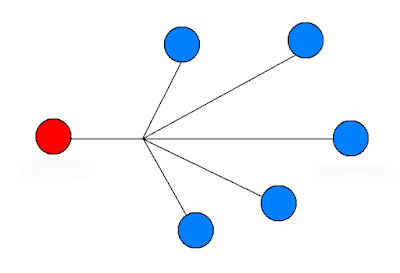
When you use what I am calling "live content" in Canvas, that means you edit the content with a tool outside of Canvas so that the updated content appears automatically in Canvas, and it also appears anywhere else that you have chosen to display that content. Publish once... display everywhere.
So, for example, when I update a YouTube playlist, I do that at YouTube, which means the playlist page at YouTube is updated (here's my Growth Mindset playlist), while it's also updated automatically in the sidebar of this blog and in the sidebar of my Growth Mindset Memes blog, and also at my Growth Mindset Playground in Canvas: Canvas.MythFolklore.net. Plus it updates automatically here in this post where I have embedded the playlist, along with anywhere else that ANYBODY has embedded this playlist. The more, the merrier: I will be really happy if other people find the playlist useful and embed it in their own blogs and websites.
And here's the thing: even if if you are collecting content that is specific to your classes only, it can still be advantageous to use this "live content" option if you have content you use in MULTIPLE CLASSES. That's the case for me with my class announcements, for example, and my class Twitter stream I have one blog for class announcements that applies to both of my classes, and I have one Twitter stream with content of interest to both of my classes. Taking the "live content" approach in Canvas allows me to update that blog once and have it update automatically for both classes, and likewise with the Twitter stream; I can tweet something, and it shows up in the Twitter stream inside both classes.
So, with the Growth Mindset Playground in Canvas, I am using live content because I hope the content I am putting there can also be of use to other teachers... but when it comes to my own classes, I need to use the "live content" approach in order to work efficiently across multiple classes: I want to update the content just one time and have it appear in both of my classes automatically!
So, with the Growth Mindset Playground in Canvas, I am using live content because I hope the content I am putting there can also be of use to other teachers... but when it comes to my own classes, I need to use the "live content" approach in order to work efficiently across multiple classes: I want to update the content just one time and have it appear in both of my classes automatically!
Publish once, display everywhere.


Thursday, May 14, 2015
Tech Tip: About Storify
Storify.com is a great free tool that you can use for curating content, collecting items from Twitter (that is how it is most commonly used) along with content from Instagram, Facebook, YouTube, Flickr, Google+, SoundCloud, and Tumblr, plus other web sources.

You the search tool to find and select what you include in your presentation, and then the presentation can be viewed at the Storify site, or embedded in a webpage. See an example below, along with more Growth Mindset Storify presentations.
Live content in Canvas. You can also continue to edit a Storify after it is done, so if someone visits the Storify site or looks at an embedded presentation, they will see the latest version with the fresh content that you added... and Storify works great embedded in Canvas (see Canvas.MythFolklore.net). So, for example, if you wanted to keep track of a "best of" selection of student content, you could create the Storify and edit it daily (or weekly or whenever), and the latest content would appear in your Canvas site... automatically.

Live content in Canvas. You can also continue to edit a Storify after it is done, so if someone visits the Storify site or looks at an embedded presentation, they will see the latest version with the fresh content that you added... and Storify works great embedded in Canvas (see Canvas.MythFolklore.net). So, for example, if you wanted to keep track of a "best of" selection of student content, you could create the Storify and edit it daily (or weekly or whenever), and the latest content would appear in your Canvas site... automatically.
Sample Storify presentation, also available at Storify site:
Wednesday, May 13, 2015
Tech Tips: Embed Twitter in Canvas
There are two ways to use Twitter in Canvas: using the Canvas Twitter App (which is really primitive), or using a hack to display a Twitter Widget. I'll explain about both below.
1. Twitter App. The Canvas Twitter App is easy to install, and it can display any Twitter user or hashtag, but it is really limited. Unlike a real Twitter widget, it does not display any media — no images, no video: sample page with Twitter App.

2. Twitter Widget. Twitter widgets, on the other hand, have great media player features, both for images and videos, along with other content-specific displays; Storify slideshows, for example, work great in Twitter.
It's easy to make a Twitter widget: just go to your account settings, choose widgets, and then configure the widget based on a huge range of choices: user, hashtag, lists, etc.
The problem, though, is that you cannot just paste the widget into Canvas as you normally would be able to do (argh!)... but there is a nifty hack you can use which I learned about at the Canvas Community.
What you need to do is get the widget ID from the Twitter widget page (it's a LONG number), and then use the code below. Paste in the long number, put in your Twitter handle, and decide how tall you want the widget window to be. Then, paste the result into the HTML view of a Canvas page, and you are good to go!
Here's a screenshot of the OUMindsetPlay Twitter widget on my course wiki's homepage at CanvasMythFolklore.net. You can also see that same widget displayed in the sidebar of this blog too!

1. Twitter App. The Canvas Twitter App is easy to install, and it can display any Twitter user or hashtag, but it is really limited. Unlike a real Twitter widget, it does not display any media — no images, no video: sample page with Twitter App.

Depending on how you use Twitter, this might not be a drawback, but my main interest in using Twitter is sharing graphics, infographics, and videos, so for me, the Canvas Twitter App is a dud. This is also a dud if you want to display the results of a Twitter list, and lists are one of the most powerful ways to use Twitter.
2. Twitter Widget. Twitter widgets, on the other hand, have great media player features, both for images and videos, along with other content-specific displays; Storify slideshows, for example, work great in Twitter.
It's easy to make a Twitter widget: just go to your account settings, choose widgets, and then configure the widget based on a huge range of choices: user, hashtag, lists, etc.
The problem, though, is that you cannot just paste the widget into Canvas as you normally would be able to do (argh!)... but there is a nifty hack you can use which I learned about at the Canvas Community.
What you need to do is get the widget ID from the Twitter widget page (it's a LONG number), and then use the code below. Paste in the long number, put in your Twitter handle, and decide how tall you want the widget window to be. Then, paste the result into the HTML view of a Canvas page, and you are good to go!
Here's a screenshot of the OUMindsetPlay Twitter widget on my course wiki's homepage at CanvasMythFolklore.net. You can also see that same widget displayed in the sidebar of this blog too!

Tuesday, May 12, 2015
OUMindsetPlay: A "Growth Mindset" Twitter Account
To support my Canvas.MythFolklore.net experiment to create a Growth Mindset Playground, I decided to create a new Twitter account! In this post, I'll explain the reasons why I decided to create a new Twitter account for this project. You might find that some of the same reasons apply to your use of Twitter for an educational project!

It might sound a little weird to have multiple Twitter accounts, but it can be extremely useful! I now have three Twitter accounts, and it's a system that works great for me because each account has a very specific purpose of its own:
Live Content. One of my favorite things about Twitter widgets is that they update in practically real time... as soon as I tweet or retweet, the content appears instantly in the Canvas course space and anywhere the Twitter widget is embedded:

OnlineCrsLady. This is what you could call my "personal" Twitter account; it's the one where I interact with coworkers at the University of Oklahoma. It's a great space for staying in touch with on-campus events even though I do not live in Oklahoma (I teach online).
OnlineMythIndia. This is my "class" Twitter account where I collect and reshare items of interest to the students in my Mythology class and in my Indian Epics class (hence the name of the account: OnlineMythIndia).
OUMindsetPlay. This is the new Twitter account, the one I will be using to collect and reshare growth mindset content. I'm excited about developing new lists and people to follow at this account!Hashtag versus Account. I started out using the #MindsetPlay hashtag, and I am continuing to use that hashtag too. Having a hashtag for a project is really valuable! When you have a hashtag for a project, that means other people can use the hashtag; so, for example, your students can contribute content by using a class-based hashtag. Meanwhile, having an account gives you more control; only my tweets and retweets show up here: @OUMindsetPlay. If I see other people using the #MindsetPlay hashtag, I can retweet, and those tweets will also show up in my account.
Live Content. One of my favorite things about Twitter widgets is that they update in practically real time... as soon as I tweet or retweet, the content appears instantly in the Canvas course space and anywhere the Twitter widget is embedded:
Account Widget in Canvas. You can see the @OUMindsetPlay account embedded in Canvas here on the homepage: Growth Mindset Playground. I put it on the homepage because this Twitter account will have lots of good new content every day!
Hashtag Widget in Canvas. I've also created a page with the #MindsetPlay hashtag embedded: Twitter Hashtag. Right now I'm the only one using that hashtag, but as I get some retweets, they will show up there, and maybe others will start to use the hashtag too.This is just Day Two of my new account... and so far, so good! I'll update this post as time goes by. I am very excited about having this new Twitter account, and I'm looking forward to making connections with new people this way. You can also see the new account embedded in the sidebar of this blog too. :-)
Monday, May 11, 2015
Tech Tips: YouTube Tips List
While building up my Growth Mindset YouTube Playlist this summer, I also want to share tips and ideas about using YouTube playlists in general — for growth mindset or for any other topic relevant to your courses!
I've written up an overview of the Advantages of YouTube Playlists, including the fact that you can embed them as live content in a Canvas course. I'll be adding more YouTube tips over the summer, and I'm creating this post as a reminder to myself of tips I should try to add in this "Summer of Tips" ... here they are:
Please let me know if you have questions or ideas for topics I should cover as I collect my YouTube tips here this summer!
Screenshot of YouTube playlist in Canvas page:

And here's that YouTube playlist embedded in this post:
I've written up an overview of the Advantages of YouTube Playlists, including the fact that you can embed them as live content in a Canvas course. I'll be adding more YouTube tips over the summer, and I'm creating this post as a reminder to myself of tips I should try to add in this "Summer of Tips" ... here they are:
- Advantages of a YouTube Playlist
- Configuring Your YouTube Channel
- Creating a YouTube Playlist
- Curating a YouTube Playlist
- Embedding a YouTube Playlist at Canvas
- More Ways to Share YouTube Playlists
- Linking to Playlist Videos and URL Hacks
- Collaborative YouTube Playlists
- Video as Blog Post Writing Prompts
Please let me know if you have questions or ideas for topics I should cover as I collect my YouTube tips here this summer!
Screenshot of YouTube playlist in Canvas page:

And here's that YouTube playlist embedded in this post:
Sunday, May 10, 2015
Tech Tip: Advantages of a YouTube Playlist
One of my Canvas live content pages displays a "Growth Mindset" playlist from YouTube; you can see the page here: Growth Mindset Playground - YouTube. I created the playlist at YouTube, and then I embedded the playlist in Canvas.
As I add new videos to the playlist (and I'll be adding a lot of videos!), they appear automatically at Canvas; I don't need to do anything after embedding the YouTube playlist in the Canvas page:


As I add new videos to the playlist (and I'll be adding a lot of videos!), they appear automatically at Canvas; I don't need to do anything after embedding the YouTube playlist in the Canvas page:

Playing a Video in a Playlist. Just click play to watch the video, and when the first video in a playlist ends, the next video in the list begins. That is the greatest power of the playlist: you can set up a series of videos for your students to watch.
Playlist Index. When you go to my Canvas YouTube page, you will see the video that is first in the playlist, but you can also access the playlist index by clicking in the upper left-hand corner. The index shows the other videos in the list:
Playlist Index. When you go to my Canvas YouTube page, you will see the video that is first in the playlist, but you can also access the playlist index by clicking in the upper left-hand corner. The index shows the other videos in the list:

Playlist Video at YouTube. If you click on the "Watch on YouTube" link in the bottom of the video, you will see the video displayed at YouTube together with information about the playlist to the right. Click on this link for an example of how YouTube displays a video as part of a playlist: How to Build Your Creative Confidence.

Playlist Page at YouTube. Finally, if you click on the title of the playlist in the playlist navigation panel, you will go to the actual YouTube page for the playlist, like this: Growth Mindset Playlist. This is the page where the creator of the playlist (me, in this case!) can rearrange videos, add annotations, etc.

Advantages of Playlists. As you can see, a playlist of videos, as opposed to a series of separate videos, can offer a lot of advantages. In other TechTips: YouTube posts, I'll explain in detail how to create and maintain a YouTube playlist and also how to embed the playlist in Canvas. Meanwhile, here is a quick list of reasons why I like working with YouTube playlists:


- the playlist is dynamic, so you can add, remove, and rearrange content, but the link to the playlist stays the same
- the playlist can be embedded in lots of places, like Canvas, in a webpage, in the sidebar of a blog (like in this blog), etc.
- you can provide your own video descriptions by adding notes to the playlist page
- you can encourage students to explore the topic in depth by collecting related videos in a playlist
- playlists are part of your YouTube channel, so students can explore your other playlists and saved videos
- students can learn video curation skills by observing your use of playlists... and then everybody can make playlists to share!
Saturday, May 9, 2015
Support for Canvas.MythFolklore.net
One of the (many) purposes for this new blog is to support the "live content" Canvas course I built as a public demonstration space for my school's transition to Canvas: Canvas.MythFolklore.net. The title of the course is Growth Mindset Playground, and I am using the topic of growth mindset as a way to illustrate the different ways that live content can be added to a Canvas course. You can read more about live content here: Why Live Content?
What I will be doing in this blog is documenting how I use the different tools featured there in the Canvas course — Twitter, YouTube, Diigo, etc. — to curate growth mindset materials for my own learning and also to share with my students. So, you can look forward to a series of posts here that will match up to the different "live content pages" which I have up and running at the Canvas course. It's completely open, so feel free to browse around there. I hope to have it in really excellent shape by the time August rolls around and faculty start really thinking about what this transition to Canvas can offer!

What I will be doing in this blog is documenting how I use the different tools featured there in the Canvas course — Twitter, YouTube, Diigo, etc. — to curate growth mindset materials for my own learning and also to share with my students. So, you can look forward to a series of posts here that will match up to the different "live content pages" which I have up and running at the Canvas course. It's completely open, so feel free to browse around there. I hope to have it in really excellent shape by the time August rolls around and faculty start really thinking about what this transition to Canvas can offer!

Sunday, May 3, 2015
Twitter Index
I'll be keeping a list here of all the Twitter posts. Be sure to check out the Storify options too!
Here are the posts I have so far:
OUMindsetPlay: A "Growth Mindset" Twitter Account. This post explains how I am using a dedicated Twitter account to collect and share materials related to growth mindset.
Tech Tips: Embed Twitter in Canvas. This post provides step by step instructions for embedding a real Twitter widget in Canvas.
Curation: Best of OU Create Project. This post provides an example of a dedicated Twitter account used to curate a "best of" content stream for OU Create (the University of Oklahoma's "Domain of One's Own" program).
Here are the posts I have so far:
OUMindsetPlay: A "Growth Mindset" Twitter Account. This post explains how I am using a dedicated Twitter account to collect and share materials related to growth mindset.
Tech Tips: Embed Twitter in Canvas. This post provides step by step instructions for embedding a real Twitter widget in Canvas.
Curation: Best of OU Create Project. This post provides an example of a dedicated Twitter account used to curate a "best of" content stream for OU Create (the University of Oklahoma's "Domain of One's Own" program).
Subscribe to:
Posts (Atom)